Getting started
Requirements, Vibrant Visuals and installing the pack.
02Choose your version
Compare Vanilla, 64x and 128x and pick the right one.
03Settings & performance
Get the brightness right and keep it running smoothly.
04Actions & Stuff
Combine Dynamic Details with Actions & Stuff for the best of both packs.
05Troubleshooting
Quick fixes for common issues, and where to get help.
01Getting started
Dynamic Details requires a device that supports Vibrant Visuals.
Minecraft for Nintendo Switch 2 will support Vibrant Visuals when the native version releases on October 27, and will therefore support Dynamic Details. However, Dynamic Details isn’t available on the original Nintendo Switch because the platform doesn’t support Vibrant Visuals.
Enable Vibrant Visuals
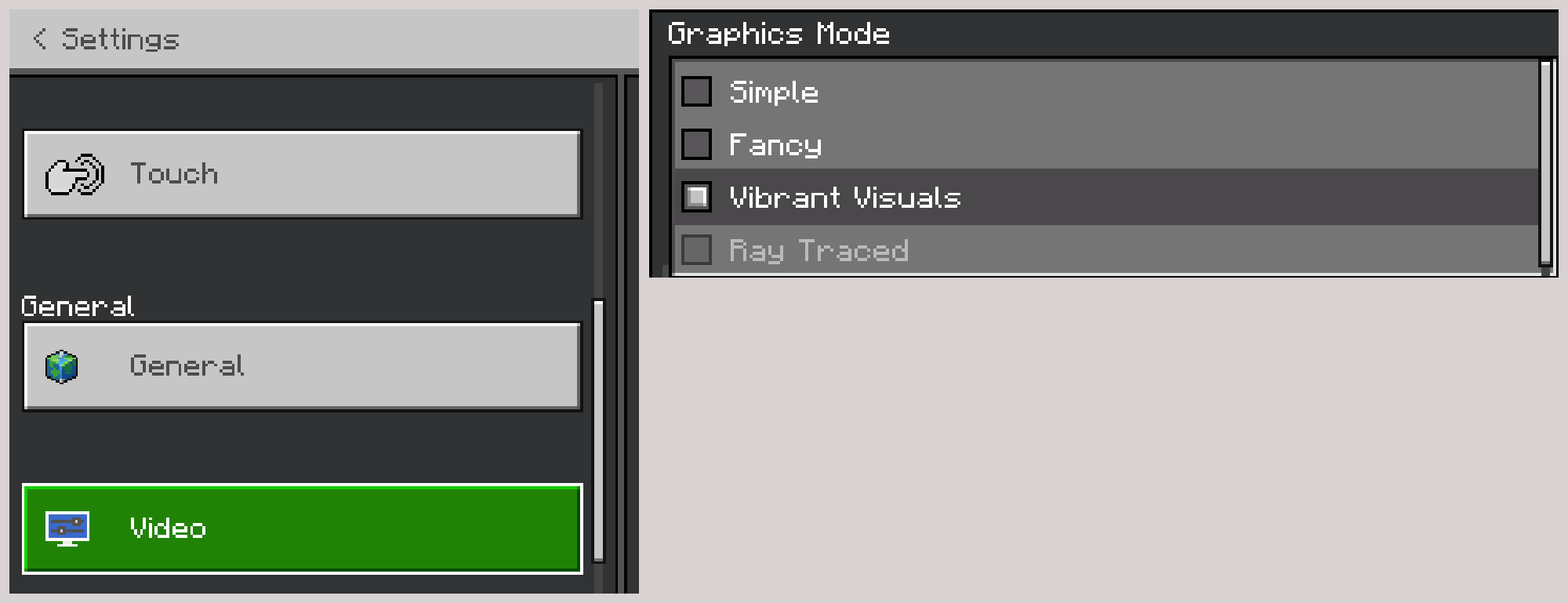
Dynamic Details is built for Vibrant Visuals — without it, the pack won't work correctly. Here's how to enable it:
- Go to Settings → Video
- Under Mode, select Vibrant Visuals
Install Dynamic Details
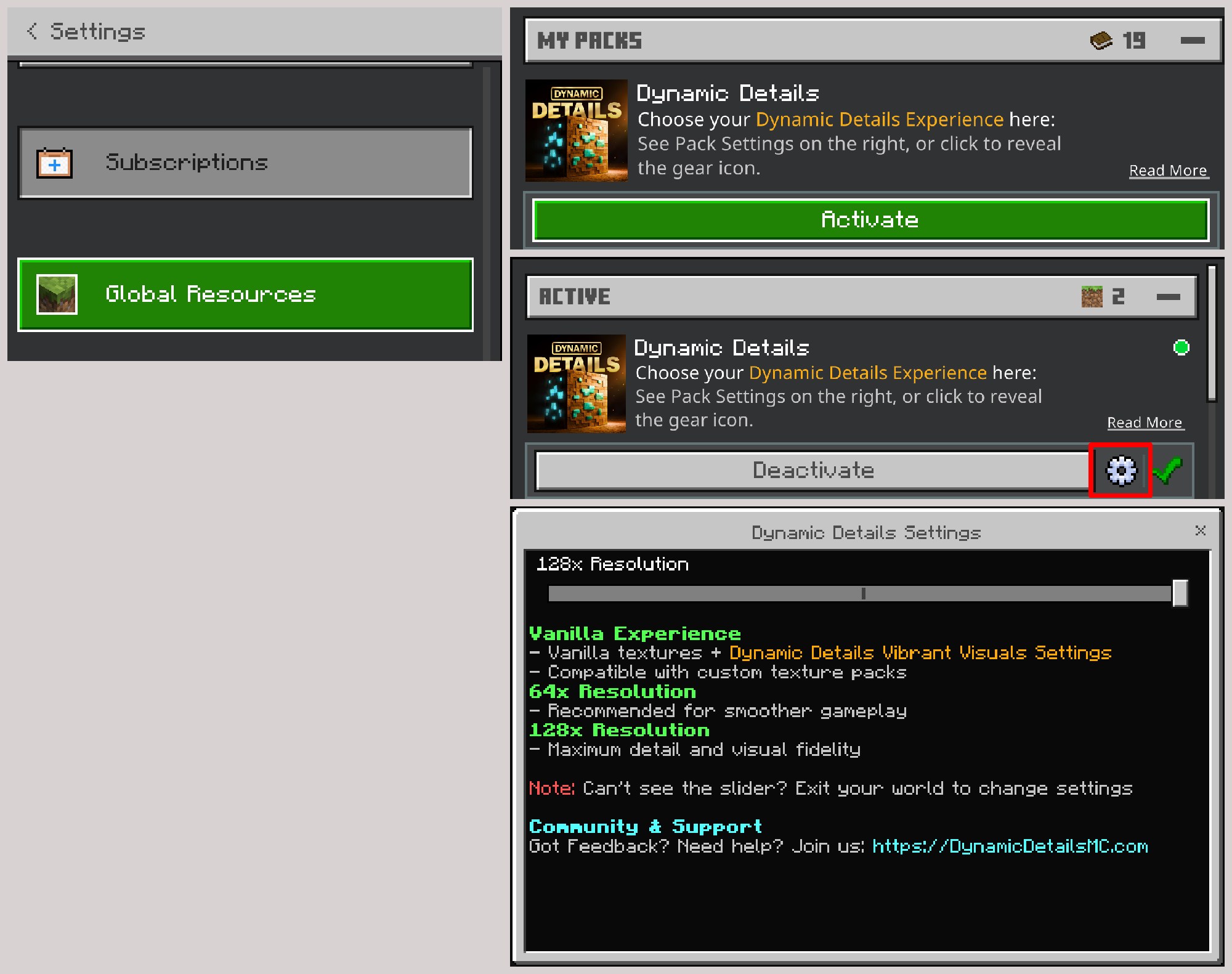
Follow these steps to activate Dynamic Details across your entire game:
- Go to Settings → Global Resources
- Activate Dynamic Details
- Click the gear icon to reveal subpacks
- Choose your preferred subpack: Vanilla Experience, 64x Resolution, or 128x Resolution
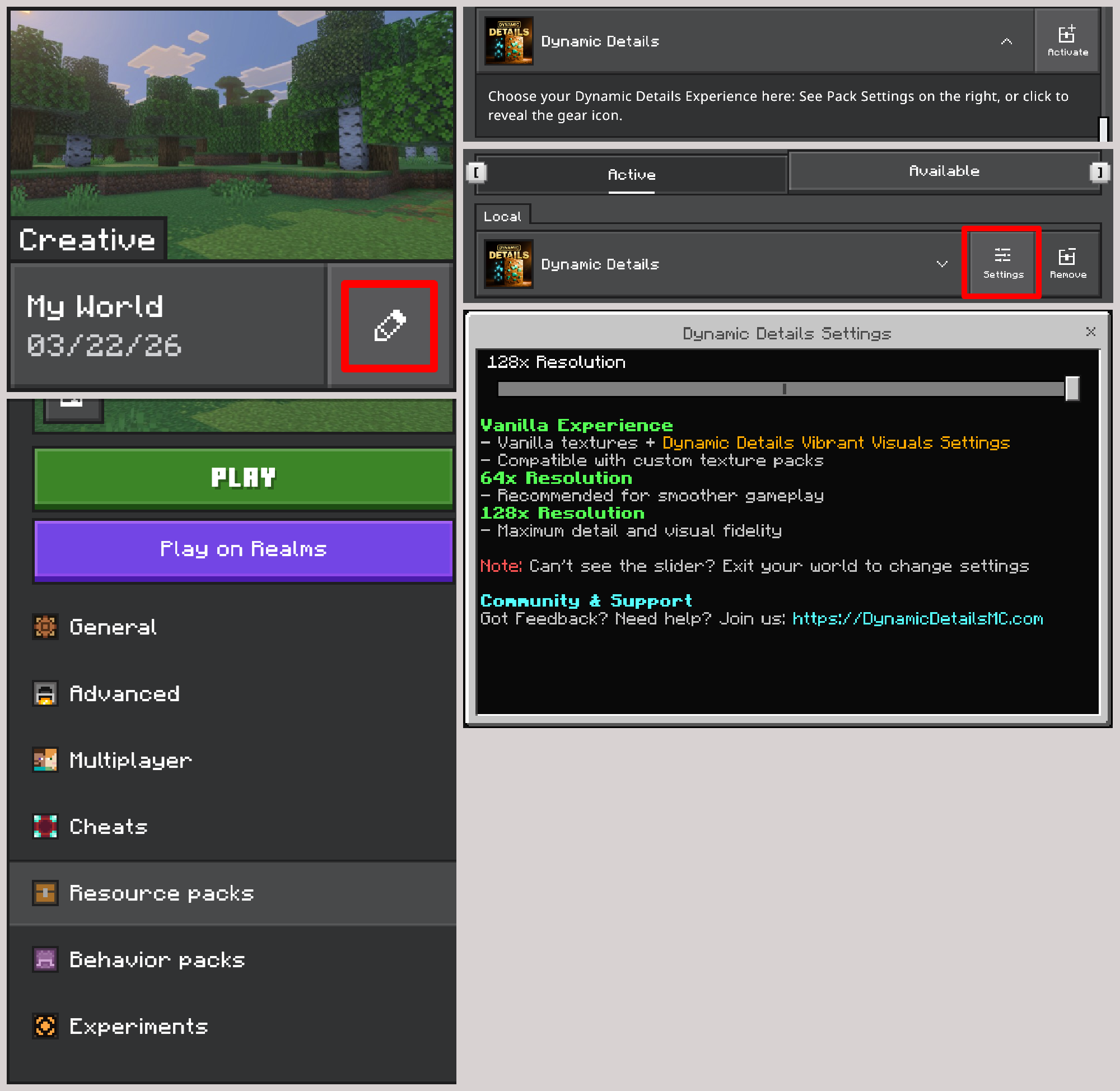
Want Dynamic Details only in a particular world? Keep different setups for different worlds this way:
- Go to the Settings of your chosen world → Resource Packs
- Activate Dynamic Details
- Click "Settings" to reveal subpacks
- Choose your preferred subpack: Vanilla Experience, 64x Resolution, or 128x Resolution
02Choose your version
Choose the right version
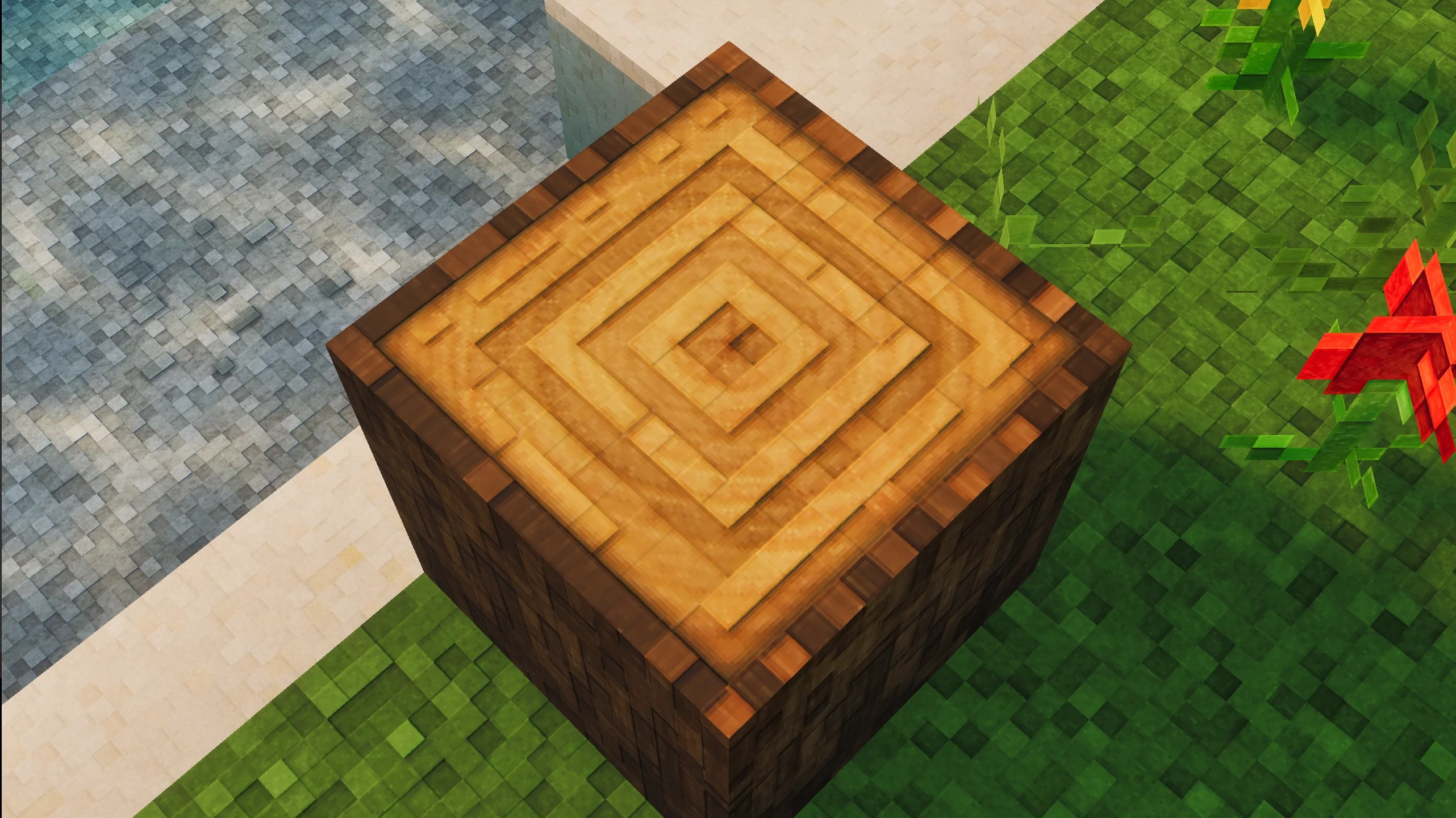
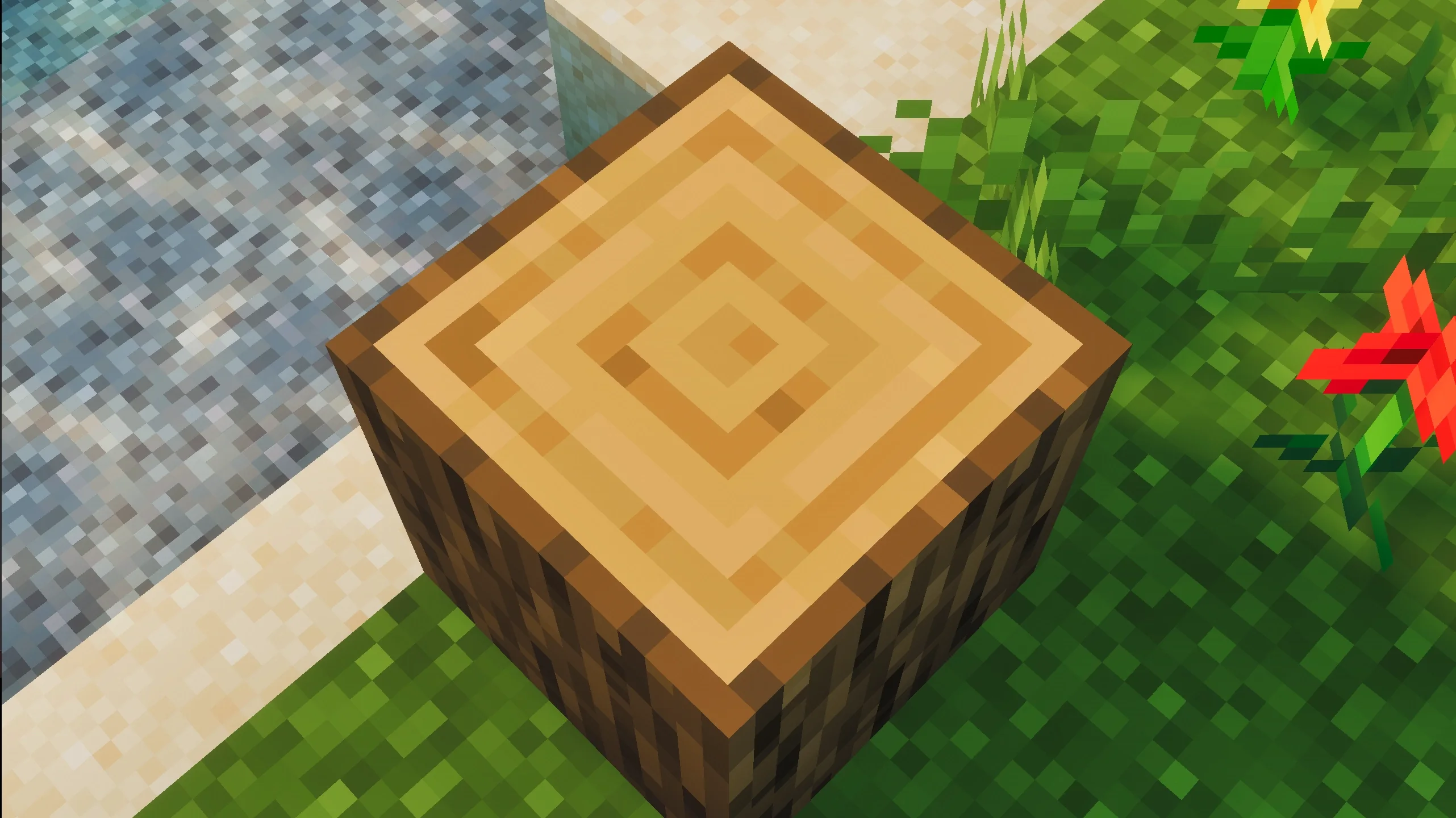 16x
128x
16x
128x
Only want the lighting without the textures?
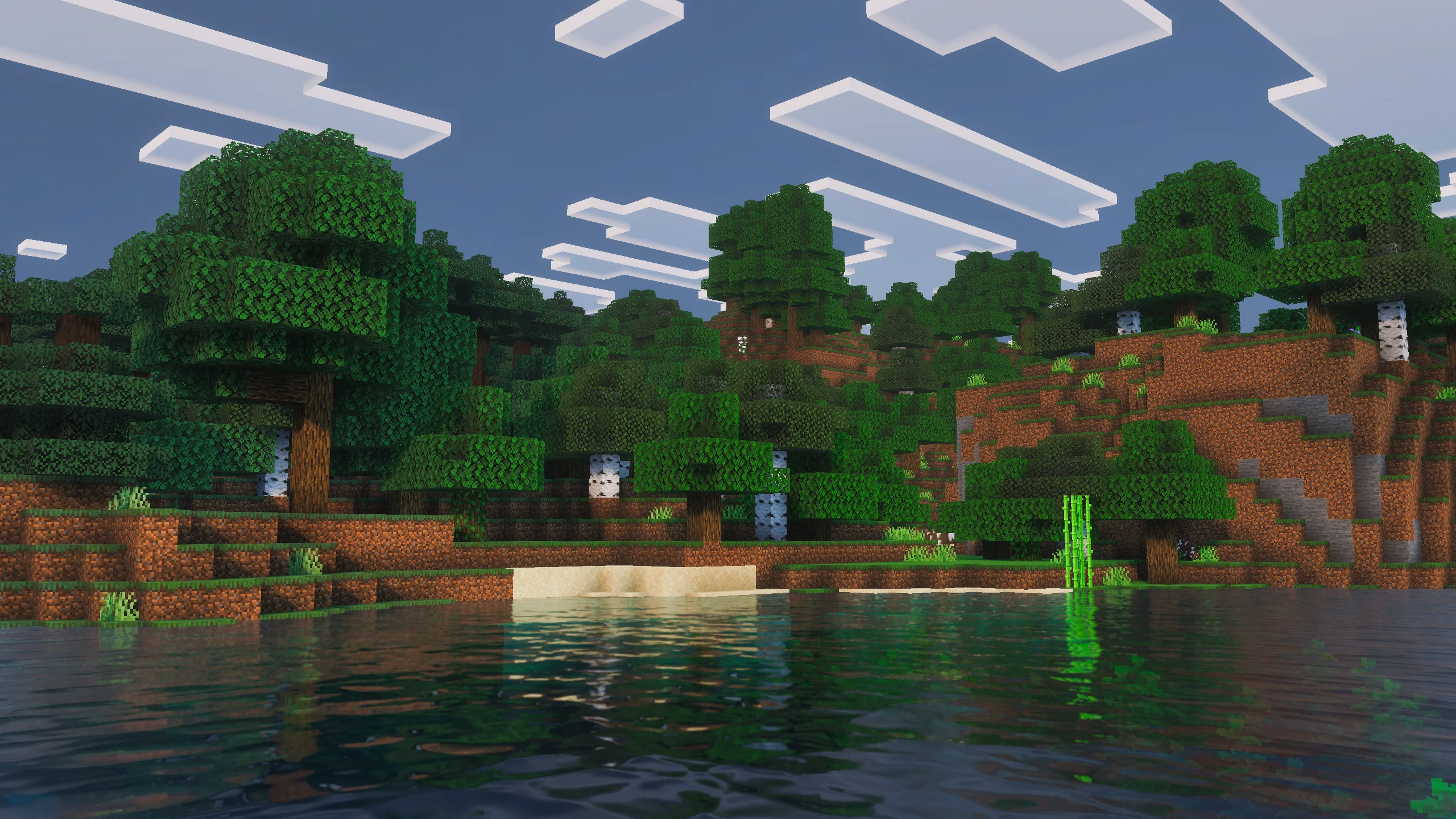
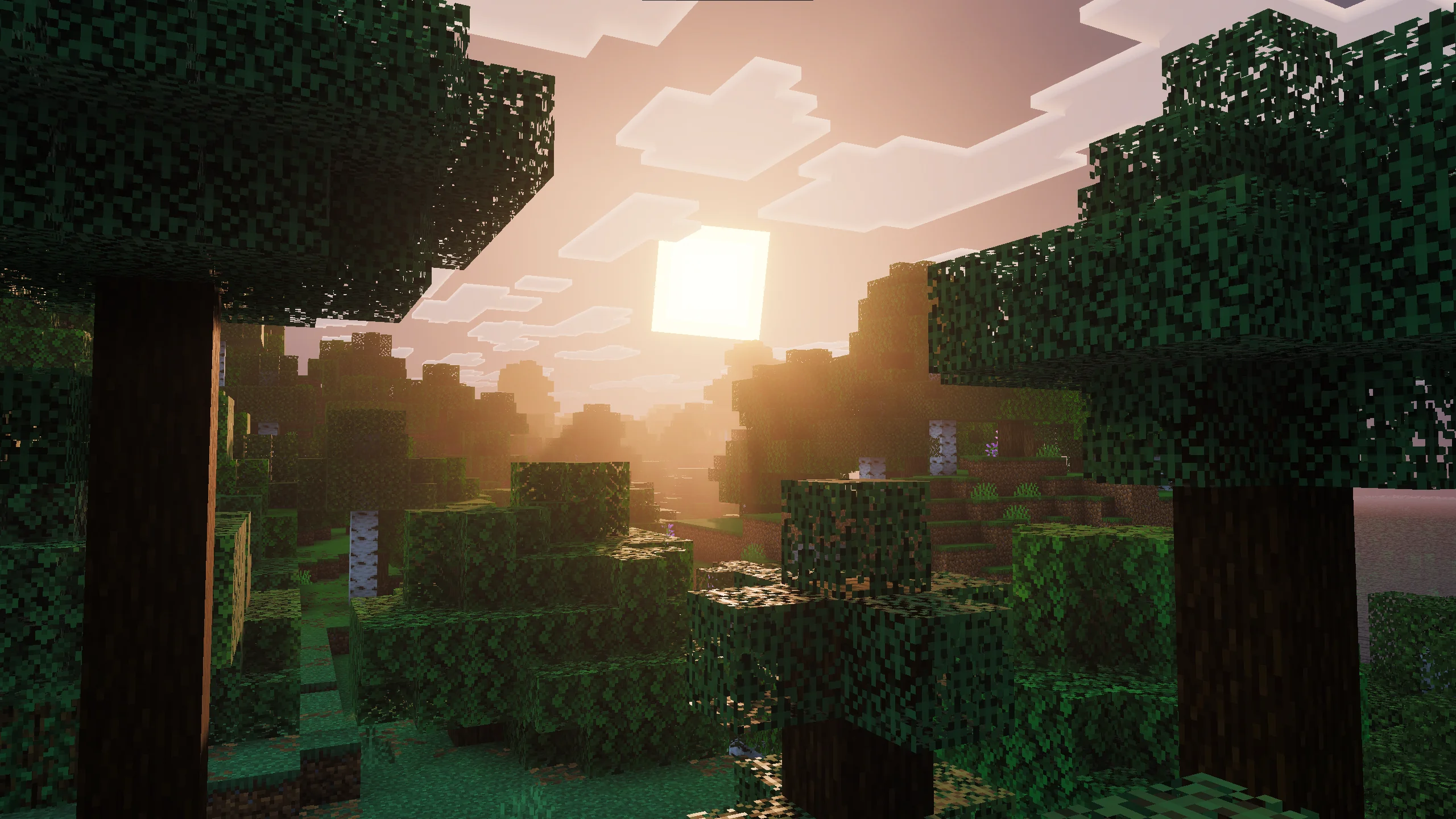
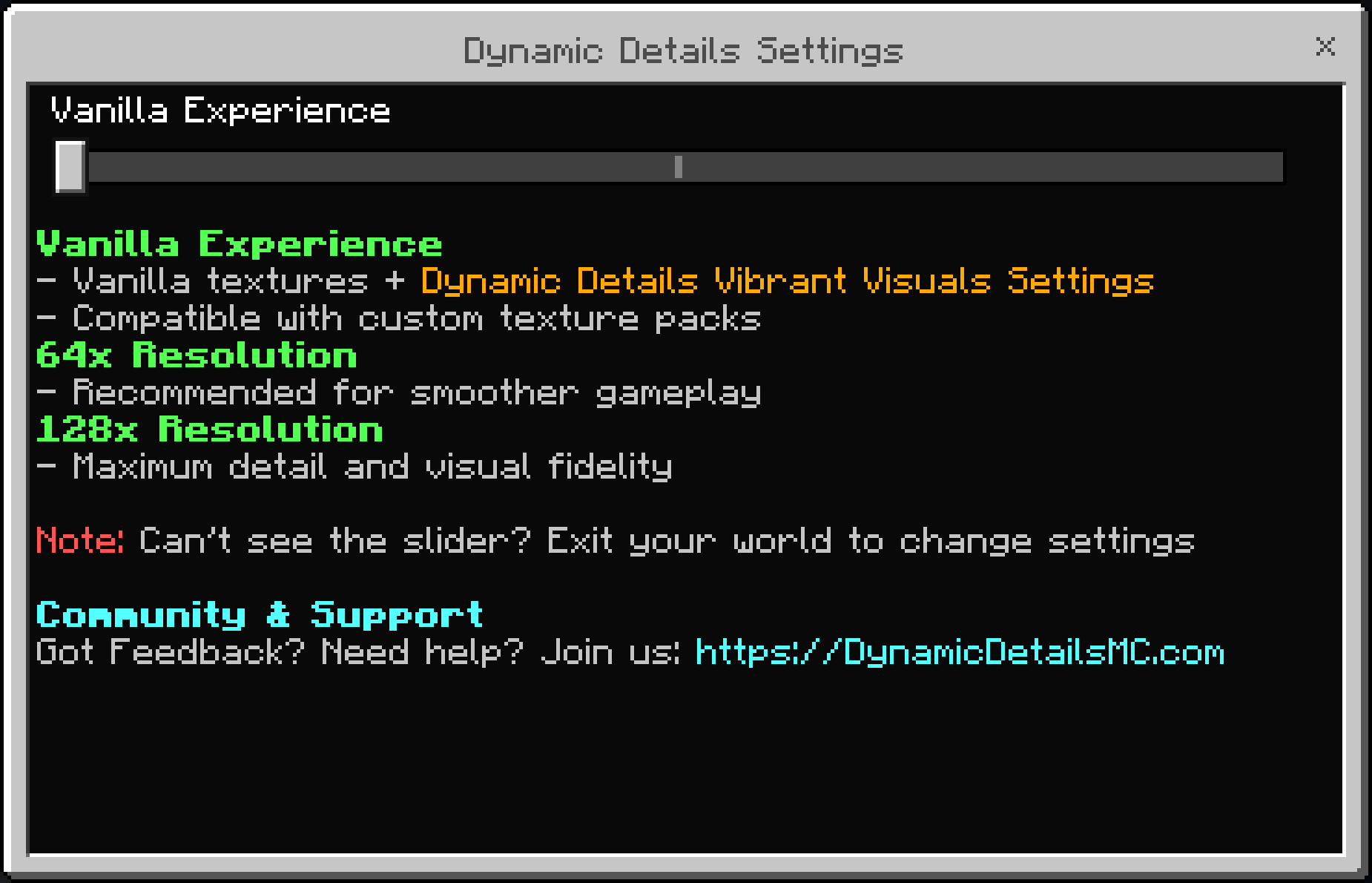
If you want only Dynamic Details' custom lighting, atmosphere, water and glowing ores — without the custom textures — that's exactly what the Vanilla Experience subpack is for:
- Follow the Global or Local Setup instructions
- When choosing your subpack, select "Vanilla Experience"
03Settings & performance
Adjust gamma
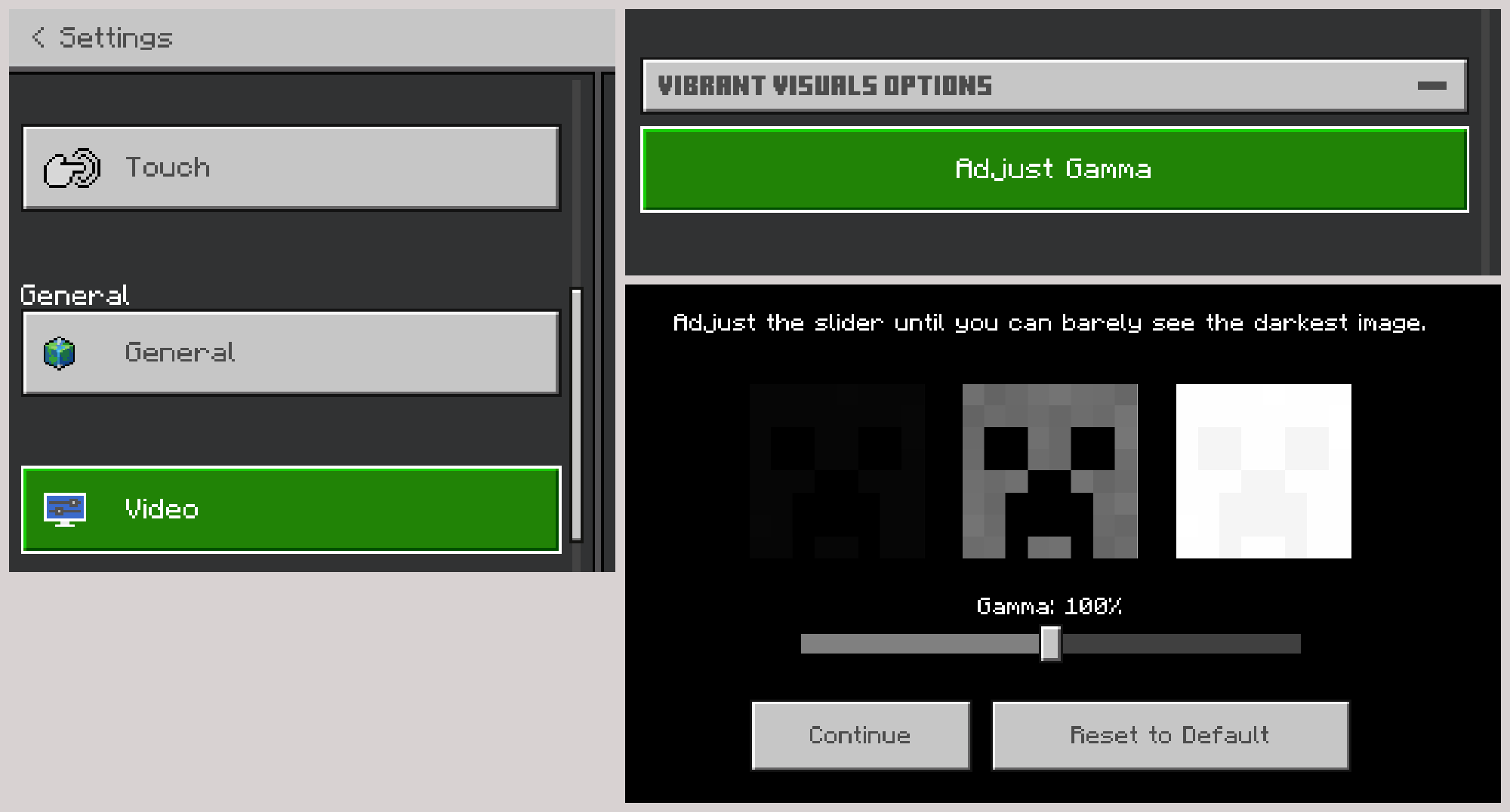
For the best experience, we recommend setting your gamma to around 100% (the default). Here's how to adjust it:
- Go to Settings → Video
- Scroll to "Display Brightness" and click the Adjust button
- Move the slider to 100%, or click "Reset to Default"
Performance optimisation
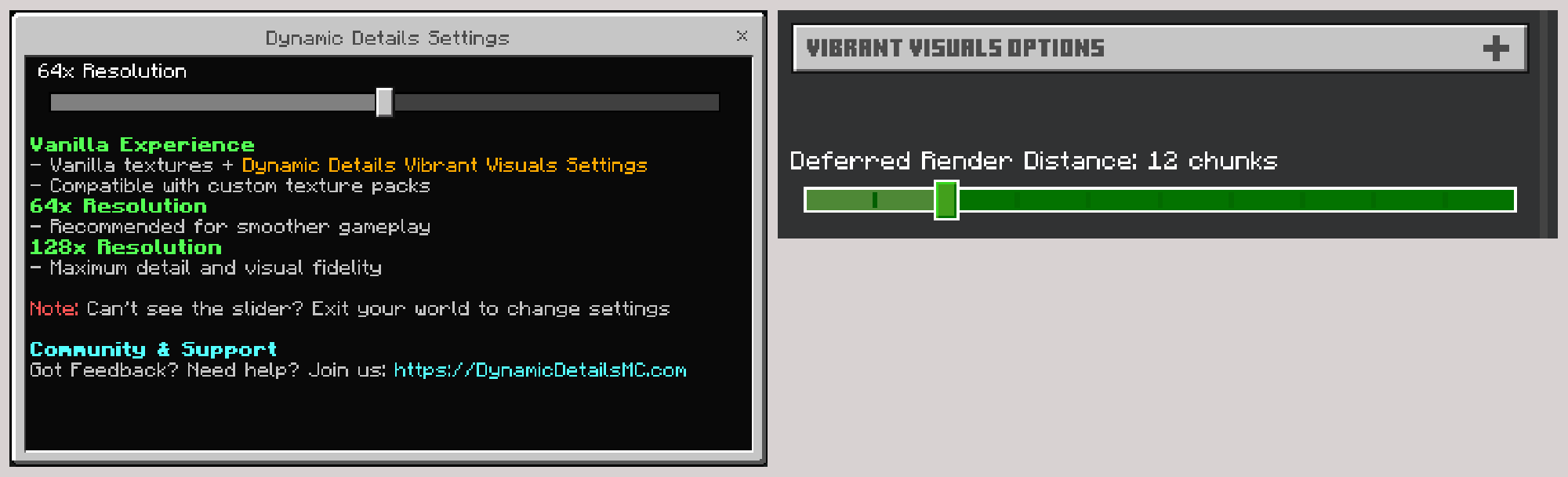
If your device supports Vibrant Visuals, Dynamic Details can run perfectly fine. For the best balance between visuals and performance, we recommend using 64x.
- In video settings, choose performance
- Lower your render distance
- Lower your resolution
- Switch to Vanilla Experience or 64x
- Close background apps
- Restart Minecraft completely
04Actions & Stuff
How to use Dynamic Details with Actions & Stuff
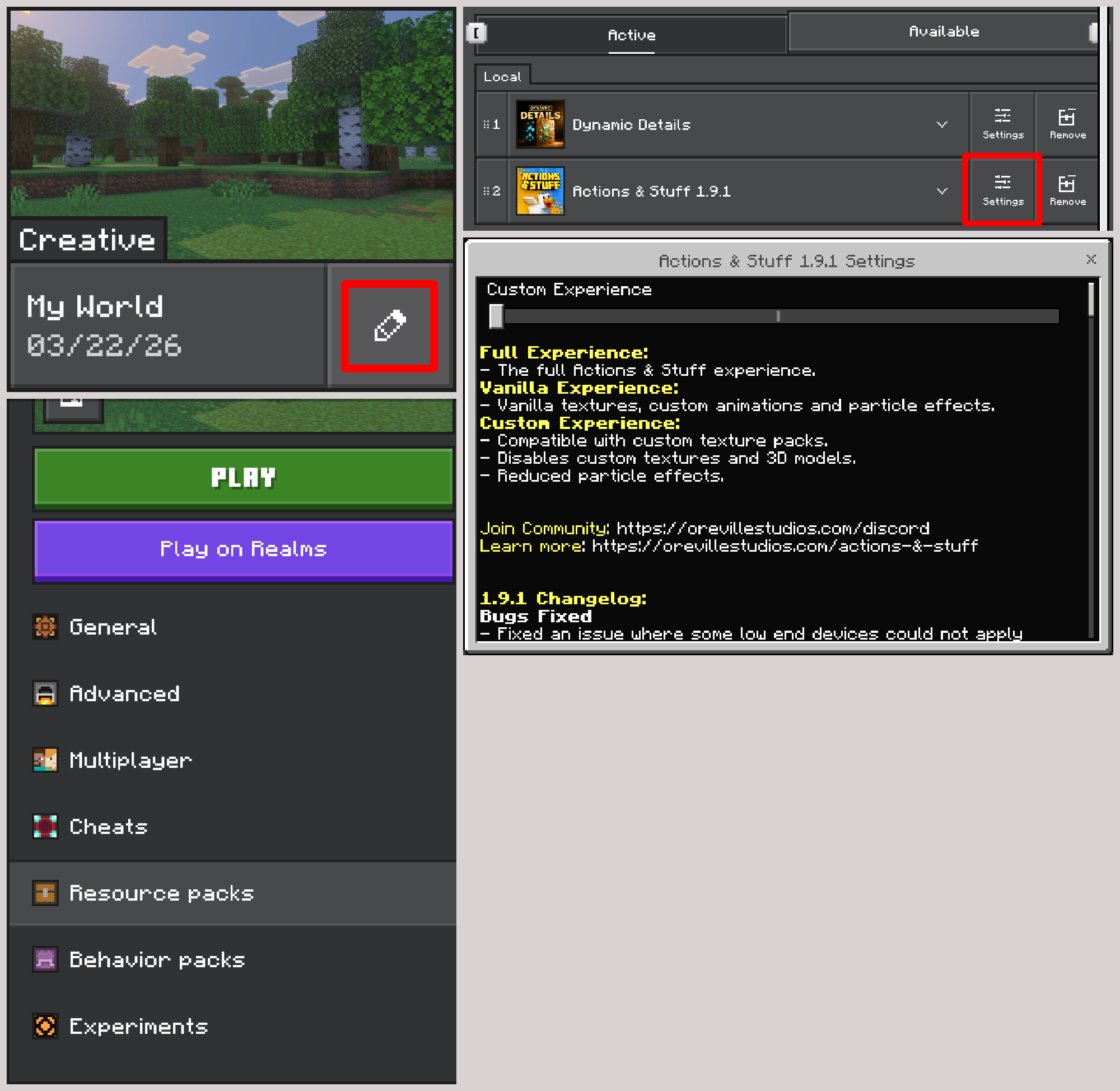
This combination gives you Actions & Stuff's animations together with Dynamic Details' textures and lighting. Follow the setup for whichever method you prefer.
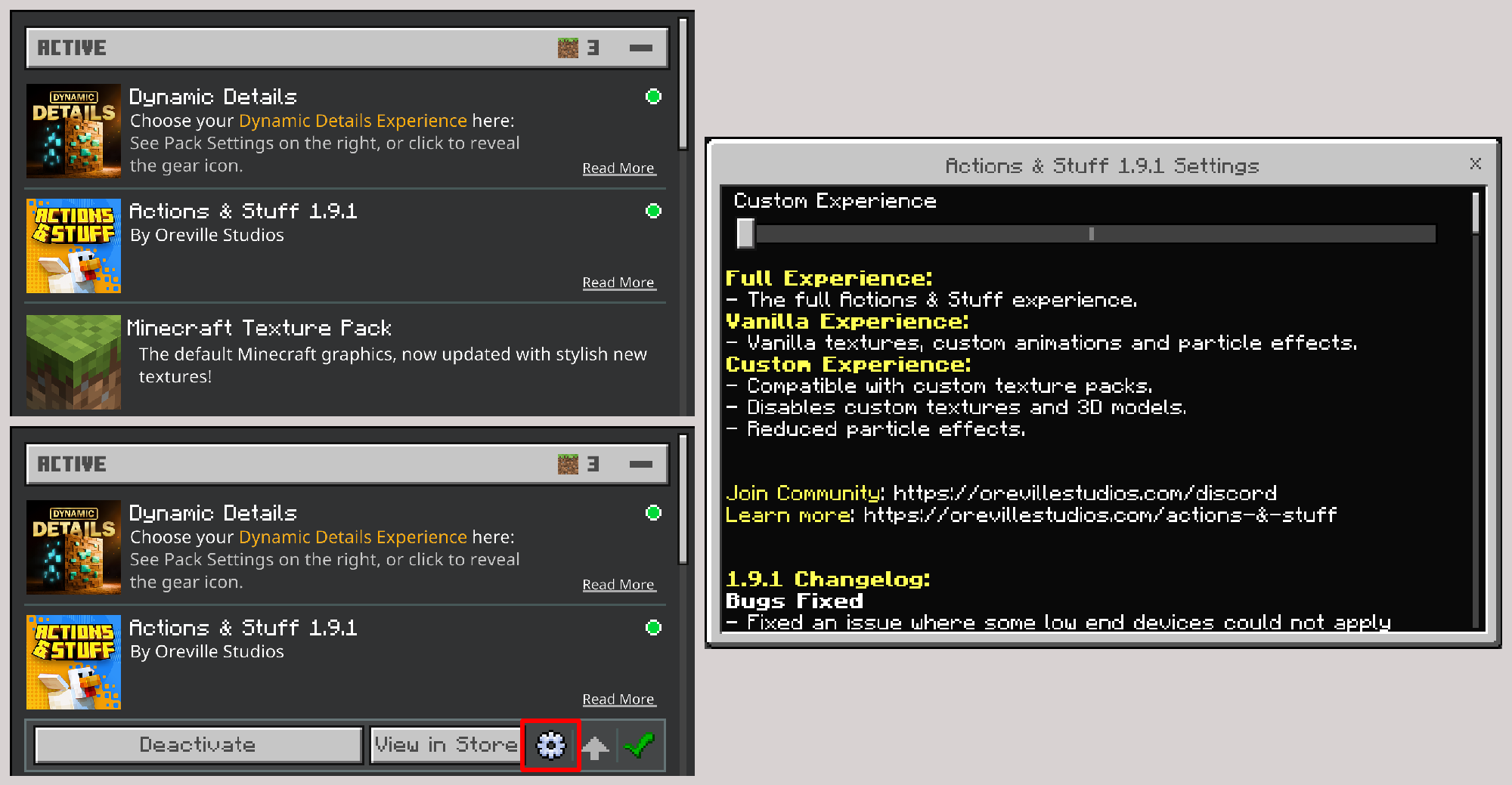
- Go to Settings → Global Resources
- Activate Actions & Stuff, then activate Dynamic Details
- Use the arrow to make sure Dynamic Details is on top and Actions & Stuff is below it
- Click on Actions & Stuff → click the gear icon to reveal its subpacks
- Choose "Custom Experience"
- Go to the Settings of your chosen world → Resource Packs
- Activate Actions & Stuff, then activate Dynamic Details
- Drag the packs to make sure Dynamic Details is on top and Actions & Stuff is below it
- For Actions & Stuff, click "Settings" to reveal its subpacks
- Choose "Custom Experience"
05Troubleshooting
Pack not working
Make sure Vibrant Visuals is enabled. Without it, Dynamic Details cannot function.
Textures not loading correctly
Make sure Dynamic Details is placed above other packs in your resource pack list. If needed, restart Minecraft.
Need to use it on a Realm?
Yes! Dynamic Details works on Realms. Players will need a Vibrant Visuals-compatible device to experience Dynamic Details’ full visuals.
Can’t select 128x?
Some devices show 128x as unavailable because of low memory. Mojang requires Marketplace packs to set memory tiers so they run smoothly on every device. The 64x subpack looks almost identical.
Still need help?
If something doesn't work as expected, we're here to help!